



If you just got a new graphics card and went straight to downloading drivers without cleaning out the old ones first, there’s a good chance you’re sitting on a problem you don’t know about yet.
Stuttering, black screen flashes, crashes mid-game, these are the kinds of issues that show up days or weeks after an install and send people down a rabbit hole of forum posts and YouTube tutorials trying to figure out what went wrong. Most of the time, the culprit isn’t the hardware. It’s leftover driver files that Windows never properly removed.
That’s the problem DDU was built to solve, and if you’re not using it, you’re skipping one of the most important steps in the whole process.
Display Driver Uninstaller, or DDU, is a driver removal utility that completely uninstalls AMD, NVIDIA, and Intel graphics card drivers from your system, removing all leftovers including registry keys, folders, files, and the driver store.
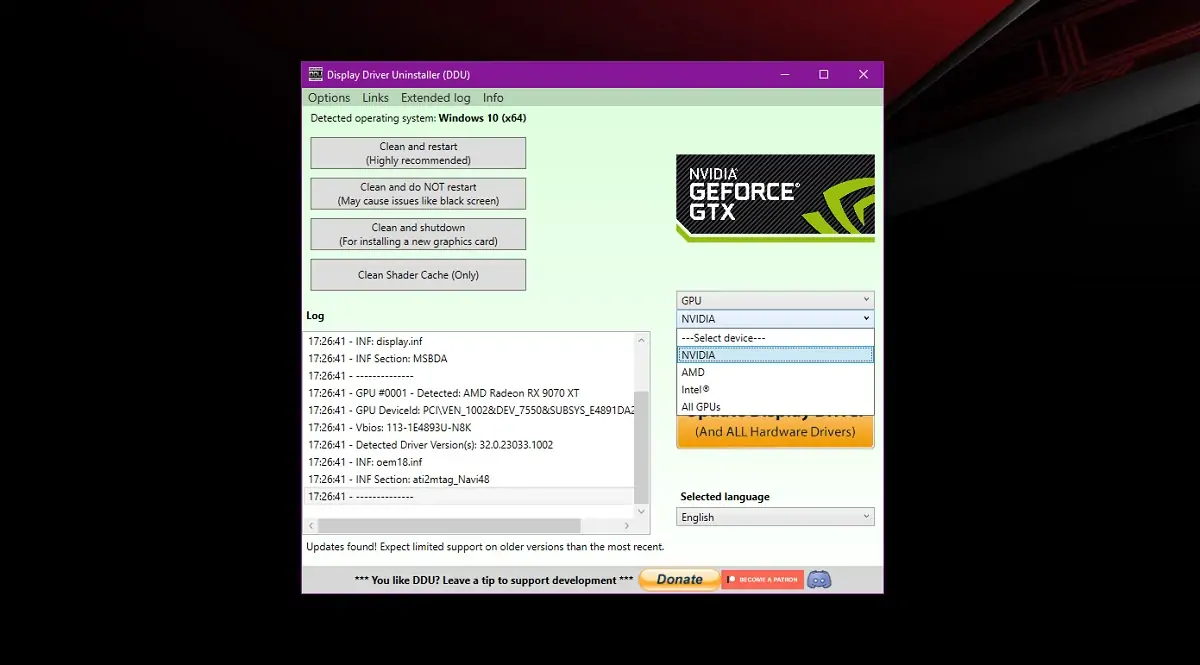
It’s a free tool developed by Wagnard, and it’s been the standard recommendation among PC builders and tech enthusiasts for years. The idea is simple: Windows’ built-in uninstaller leaves behind more than you think, and those remnants can conflict with whatever you install next.
Over time, those leftover files can cause compatibility issues such as drivers failing to install, reduced performance, or system crashes and freezes. DDU goes in and cleans all of it out. The effect after using it is similar to installing a driver for the first time on a fresh Windows installation.
One thing worth clarifying before anything else: DDU should be used when you’re having a problem uninstalling or installing a driver, or when switching GPU brand. It should not be used every time you install a new driver unless you know what you’re doing.
Routine driver updates on the same GPU generally don’t require it. But if you’re switching from NVIDIA to AMD or vice versa, or you’re dealing with persistent graphical issues that won’t go away, DDU is not optional.
What is DDU and why should you care
Before touching anything on your PC, there are two things you need to download and have ready. The first is the new GPU driver from NVIDIA’s, AMD’s, or Intel’s official website. Make sure you grab the offline installer specifically, not the online one.
The online installer pulls its files from the internet during installation, and since you’ll be going offline before running DDU, it simply won’t work. Get the full offline file and save it somewhere easy to find. The second download is DDU itself, available at the official Wagnardsoft site, or through Guru3D, which is an official download partner for the tool.
Once you have both files ready, disconnect your PC from the internet. On Windows 10 and Windows 11, this prevents Windows from automatically downloading GPU drivers in the background the moment you reboot, which would defeat the entire purpose of the process. Then boot into Safe Mode.
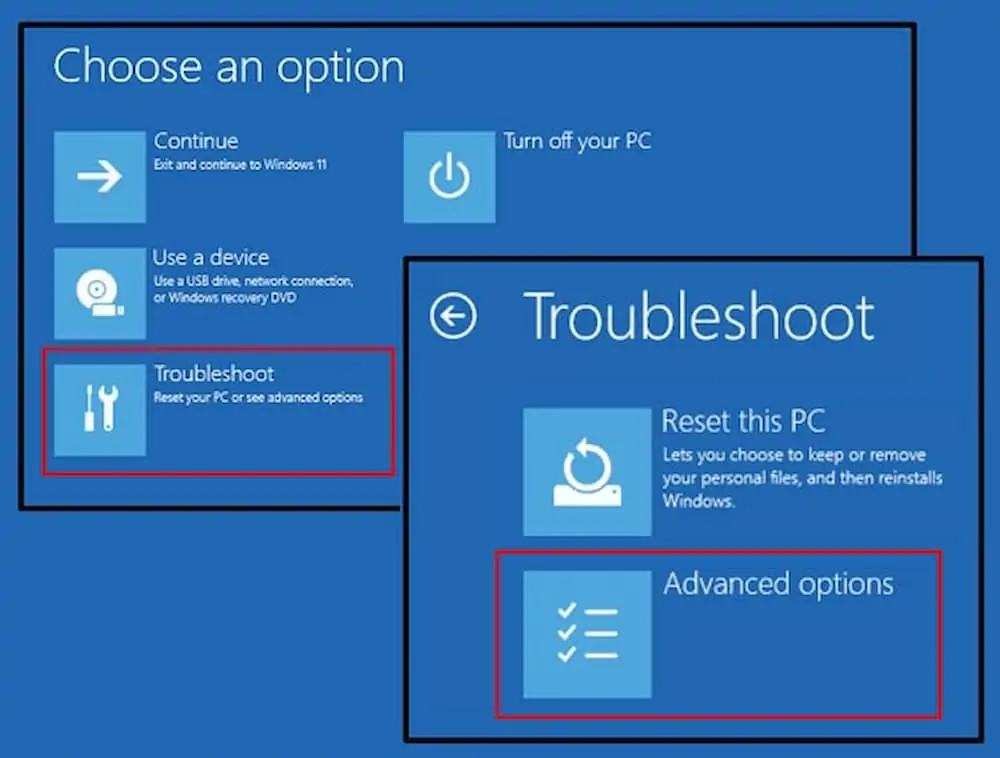
On Windows 11, hold Shift while clicking Restart, go to Troubleshoot, then Advanced Options, then Startup Settings, and select Safe Mode from there. Running DDU in Safe Mode ensures that Windows doesn’t interfere with the uninstallation process by loading GPU drivers in the background, allowing for a cleaner and more complete removal and minimizing the chance of driver remnants causing issues later.
A couple of things to keep in mind before you reboot: if you’re on Windows 11 24H2, your PIN may not work in Safe Mode, so make sure you know your actual account password and have used it at least once in normal mode beforehand. And if you have BitLocker enabled, have your recovery key within reach.
The right way to use DDU
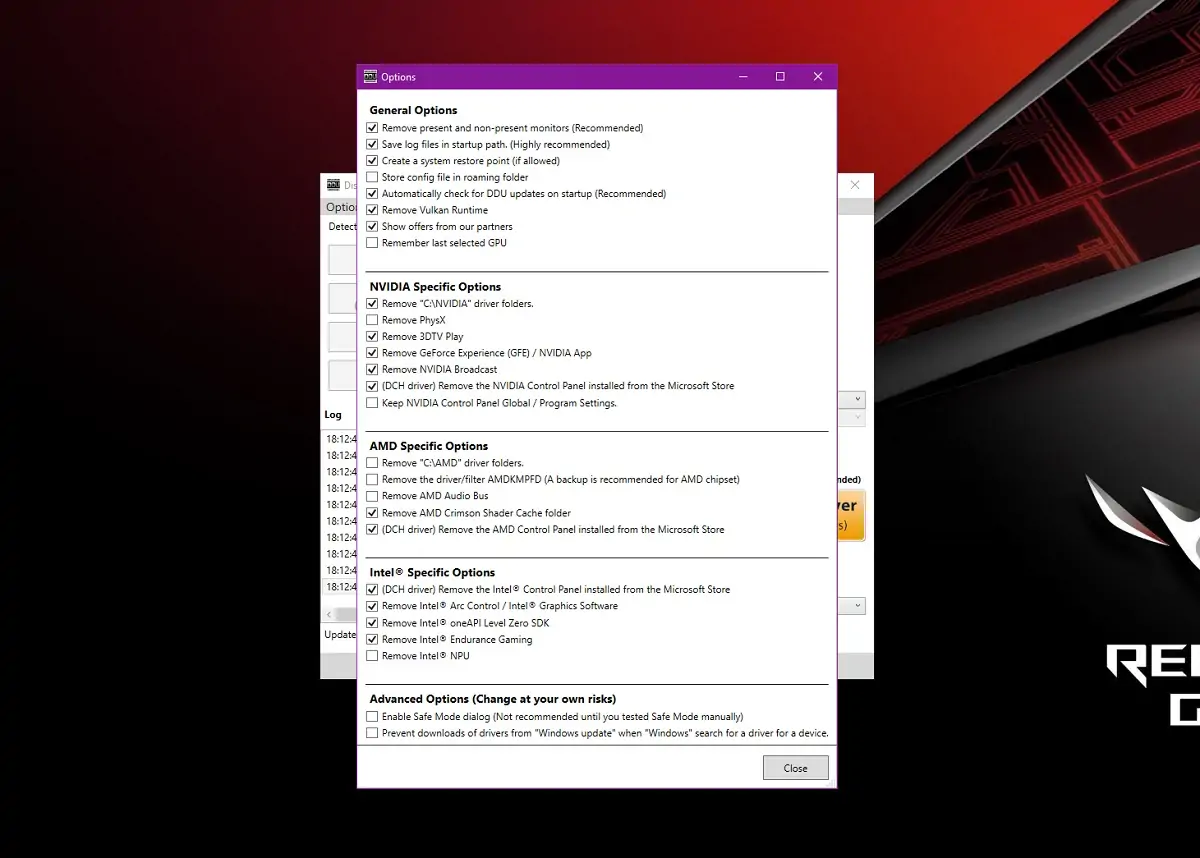
Once you’re in Safe Mode, extract DDU to a folder on your local drive, the desktop works fine, and run the executable. A settings window will appear on first launch. If you’re a beginner, leave the default options checked and just click Close. On the right side of the interface, set the device type to GPU and select your specific card from the dropdown menu.
Then choose your cleaning option. If you’re keeping your current graphics card but need to fix a faulty driver or do a clean update, choose Clean and restart. If you’re physically switching from NVIDIA to AMD or upgrading to a new card, Clean and shutdown is the mandatory choice.
After DDU finishes, your screen resolution will drop and things will look rough. That’s expected, Windows reverted to its basic display adapter since there’s no GPU driver installed anymore. This is exactly why you needed that offline installer ready beforehand. Stay offline, run the driver installer you downloaded earlier, let it complete, and restart.
Only after the new drivers are fully installed and the system is back up should you reconnect to the internet. That order matters, going online before installing gives Windows the opportunity to push its own driver version and undo the clean install you just did.
And that’s it. Your system is now running on a clean driver install with no leftover files, no conflicting registry entries, and nothing lurking in the background waiting to cause problems. You did it the right way.
When you absolutely need DDU
Worth spelling out clearly when DDU is truly necessary. The most obvious case is brand switching. If you’re changing hardware brands, going from NVIDIA to AMD or vice versa, DDU prevents cross-brand GPU driver corruption by making sure no old files conflict with your new card.
Having AMD driver remnants on a system running an NVIDIA card, or the other way around, is one of the most common sources of graphical instability and Windows won’t flag it on its own.
The second case is troubleshooting. Many users have resolved persistent graphical glitches, crashes, or performance drops by using DDU to do a clean reinstall of their GPU drivers. If you’ve tried everything else and issues keep coming back, a DDU clean install should be your next move.
The third case is a fresh build or major GPU upgrade, where starting completely clean ensures you’re getting the best possible baseline performance right from the start.
What DDU won’t touch: it does not erase any personal files. It only wipes the selected driver and associated software. Games, documents, and personal settings stay exactly where they are.
The one thing you will lose is any settings or profiles you’ve created in your GPU control panel, so you may need to re-enable things like refresh rates or color settings once you’re back up and running.
DDU is free, it takes about ten minutes from start to finish, and it’s been trusted by system builders and tech reviewers worldwide for years. There’s no real reason to skip it when the situation calls for it. Your GPU deserves a clean start, give it one.
Have you ever used DDU to fix a stubborn driver issue, or are you about to run it for the first time with a new card? Drop a comment and let us know what GPU you’re upgrading to!