
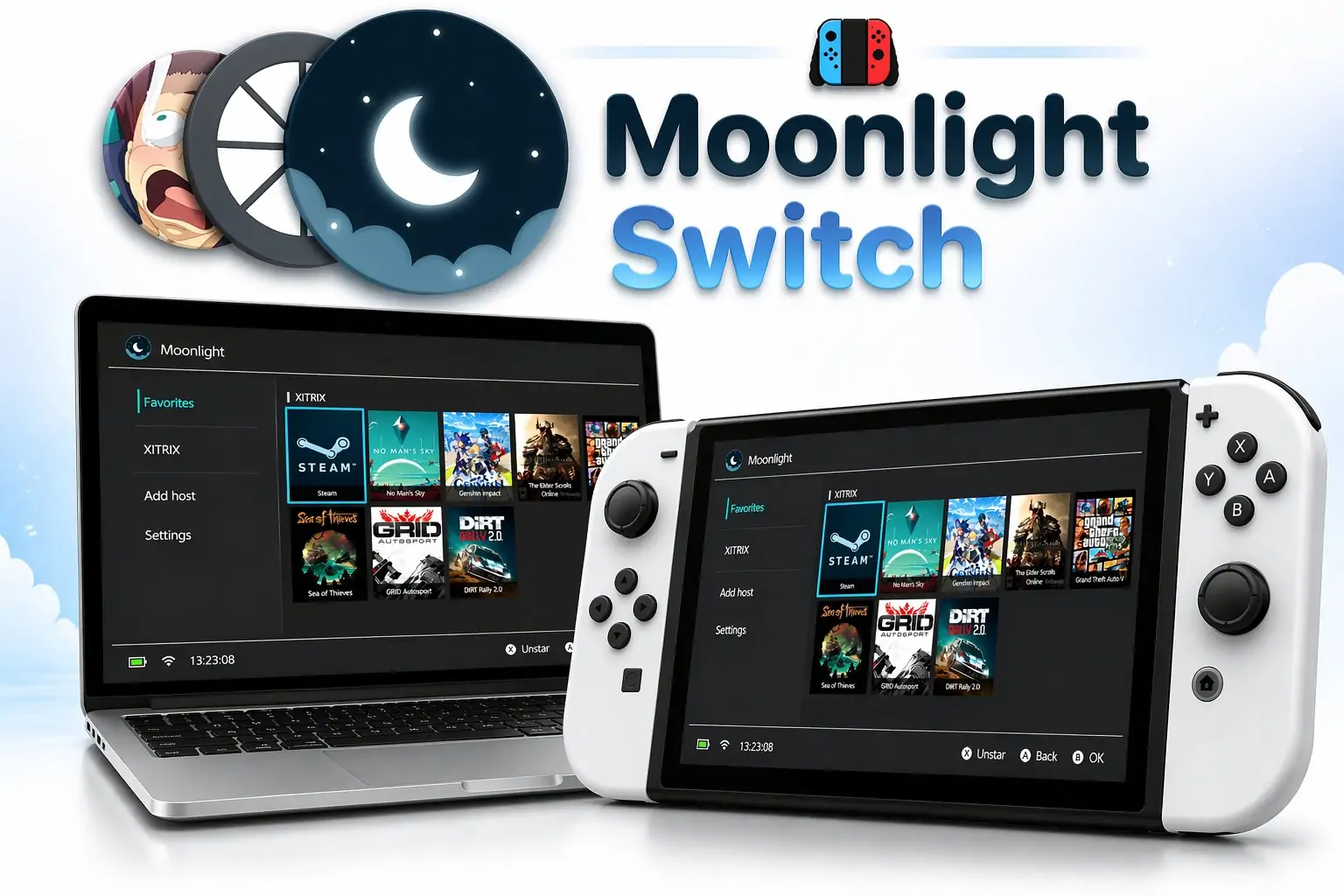

If you own a Nintendo Switch running custom firmware and a gaming PC at home, there’s a homebrew app that lets you do something most people don’t even know is possible, stream your entire PC game library directly to your Switch, in handheld mode, from anywhere in the house.
It’s called Moonlight-Switch, developed by a community member known as XITRIX, and it’s one of the most capable and well-maintained tools in the homebrew scene today.
Moonlight-Switch is a port of the Moonlight Game Streaming Project specifically built for the Nintendo Switch. Moonlight itself was created by Case Western Reserve University students at the MHacks hackathon in 2013, originally as an open-source implementation of NVIDIA‘s GameStream protocol, the same technology behind the NVIDIA SHIELD.
For years, streaming with Moonlight required an NVIDIA GPU running GeForce Experience with GameStream enabled. Then NVIDIA discontinued that feature entirely, which could have killed the ecosystem. Instead, the community rallied around Sunshine, a free open-source host application that replaced GeForce Experience and expanded support to NVIDIA, AMD, and Intel GPUs alike. No subscriptions, no cloud servers, no monthly fees, just your PC and your local network.
The way it works is straightforward: your gaming PC captures the game’s video output, encodes it using your GPU’s hardware encoder, and streams it over your network to the Moonlight client.
The client decodes the stream and displays it on screen, while simultaneously sending back your controller inputs, mouse movements, and keyboard presses to the host PC in real time. XITRIX took that entire system and made it run natively on Nintendo’s portable console as a homebrew application, and the result is genuinely impressive.
A feature set that punches well above its weight
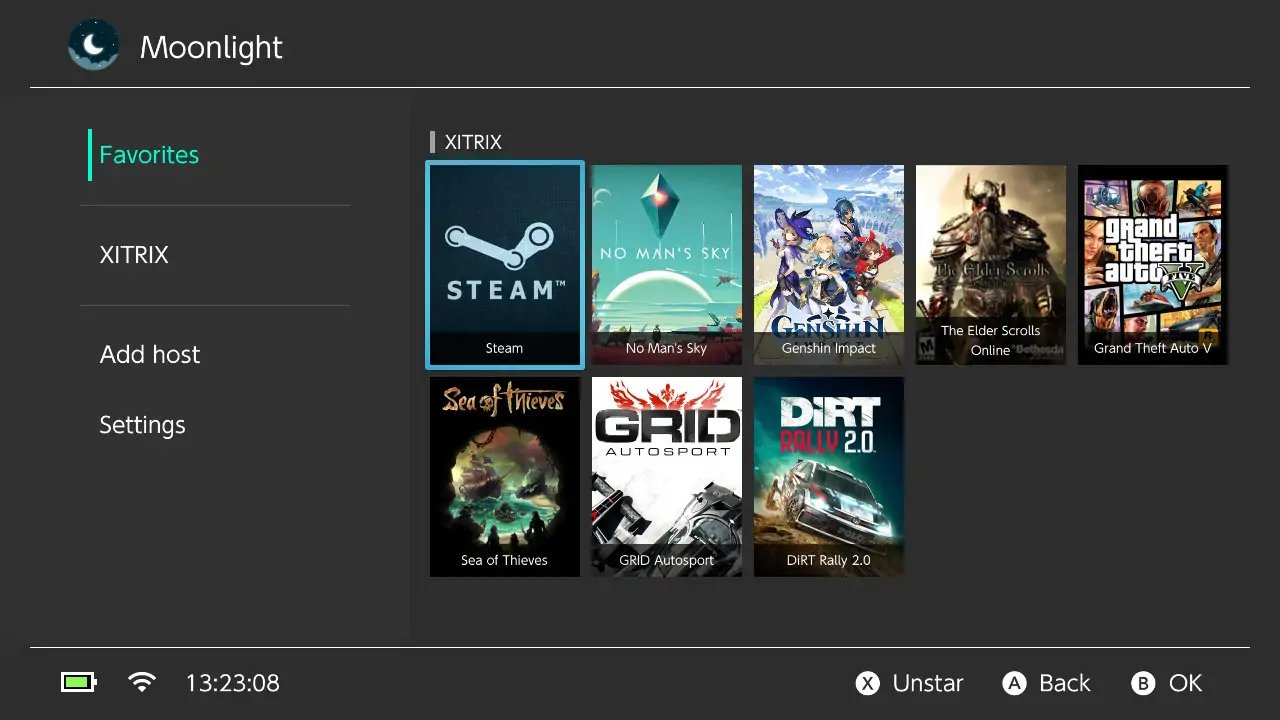
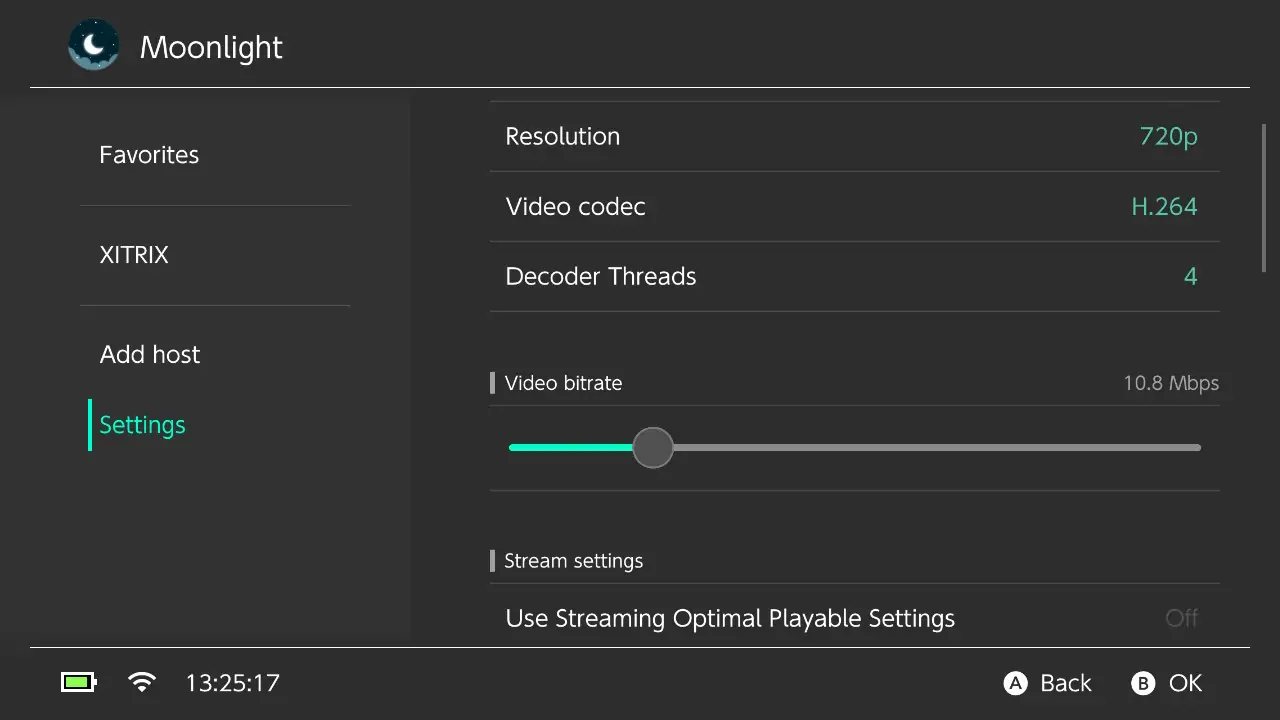
Moonlight-Switch supports 720p and 1080p resolution streaming, 30 and 60 fps modes, and a configurable streaming bitrate. The app automatically searches for hosts on the local network, so connecting to your PC is as simple as launching the app and tapping your computer’s name. An in-game overlay is accessible by pressing the minus and plus buttons simultaneously, giving you quick access to settings mid-session without interrupting your stream.
RELATED: How Klipper on a Nintendo Switch unlocked 10x faster speeds for a Prusa MK3S
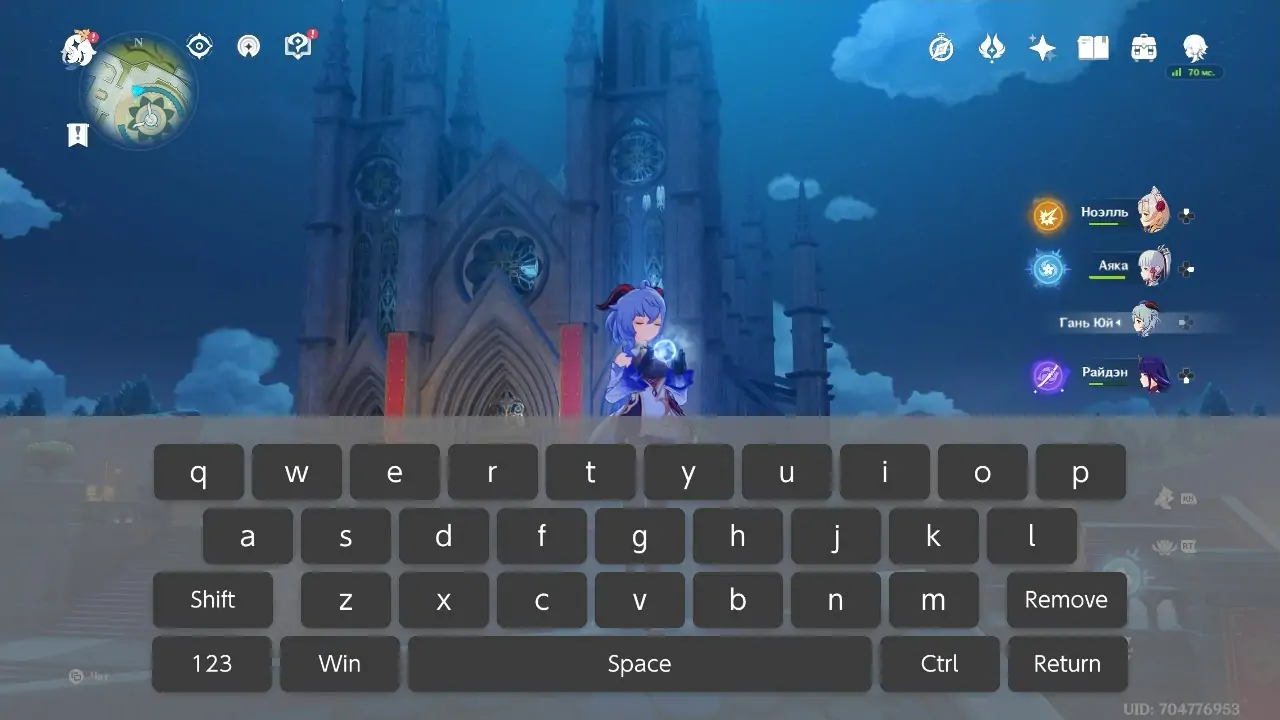
Touchscreen support is fully implemented and works like a laptop trackpad, tap to left click, scroll with two fingers, and use ZL and ZR as mouse buttons while your finger is on the screen. Physical USB keyboards and mice are also supported, as are up to five gamepads simultaneously, half Joy-Con configurations, gyro input, SixAxis, and analog triggers for compatible devices. The onscreen keyboard can be summoned at any time by tapping three fingers on the screen, which is useful for games or apps that require text input.
One of the standout features is NSP forwarder support. The app lets you generate a forwarder file for any game or application in your Favorites list, which installs as a tile directly on the Switch home screen. Tapping that tile launches the stream immediately with a predefined configuration, host IP, app ID, and app name already set, so you can go from the home screen straight into a PC game without opening any menus. It’s the kind of polish you don’t always expect from a homebrew project.
Hardware decoding via NVDEC is also supported, which offloads video decoding from the CPU to the Switch’s dedicated hardware decoder. This matters because the Switch’s processor is limited, and software decoding at higher settings can introduce lag or instability. With NVDEC handling the job, streams at higher bitrates run noticeably smoother.
For those pushing 1080p with high bitrates, the developer recommends overclocking the Switch’s CPU and GPU using Sys-Clk or the 4IFIR Atmosphere build, though the developer is explicit in the documentation that overclocking carries inherent risk and is entirely the user’s responsibility.
Five years of active development, and still going
Moonlight-Switch has been actively developed and updated since its early versions, with XITRIX consistently adding features, fixing bugs, and responding to community feedback.
Version 1.3.0, released in March 2025, introduced a frame buffer queue, full Sunshine encryption support, host renaming, custom port support, stick dead zone configuration, and automatic reconnection attempts when a stream drops unexpectedly. That same update brought multithreading improvements that made the app’s UI noticeably faster and added French localization and keyboard support.
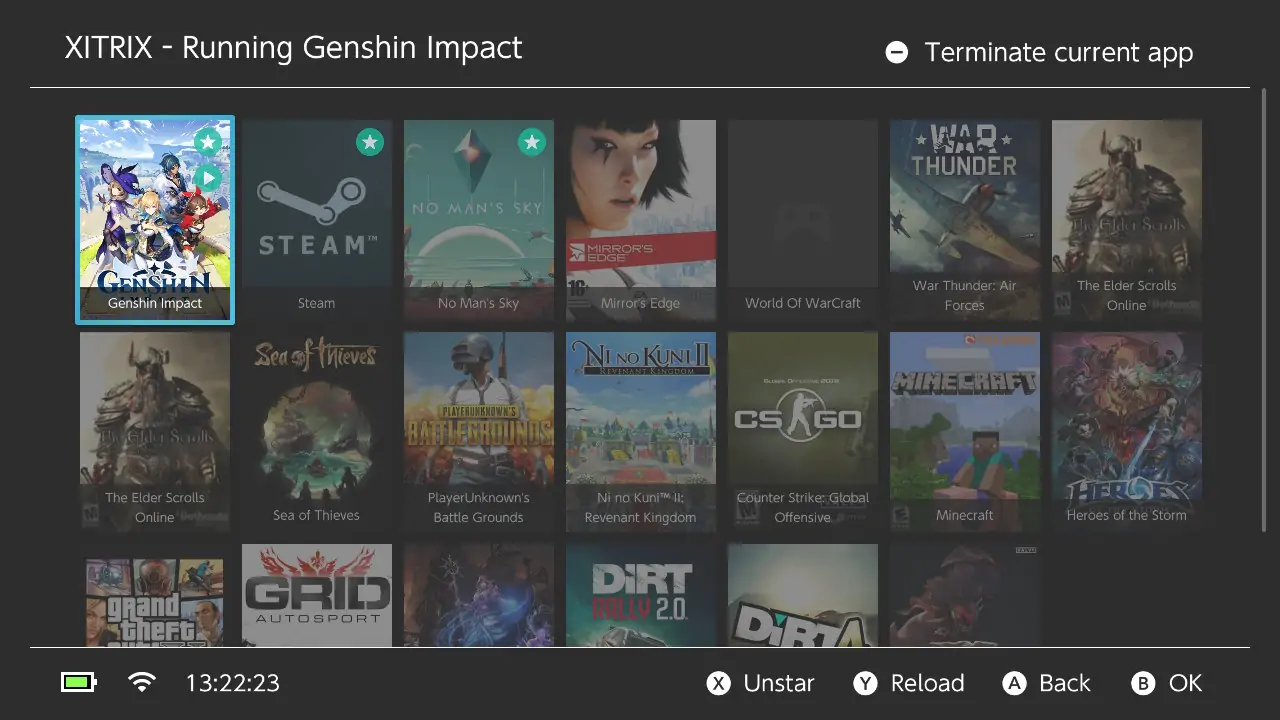
Version 1.4.0, released in March 2026 and the current latest release, switched the renderer for Nintendo Switch to Deko3D, which reduces CPU pressure under higher streaming settings, a meaningful optimization that directly benefits users streaming at 1080p or higher bitrates. The project currently has over 1,500 stars on GitHub and remains under active development, with the developer accessible on the Moonlight Discord server in the dedicated Switch help channel.
What you need to get started
The most important requirement is a Nintendo Switch running custom firmware, specifically Atmosphere, with the Homebrew Menu available. This is not an app for stock firmware consoles. If your Switch is unmodified, Moonlight-Switch is not an option.
That said, installation for those already in the homebrew ecosystem is straightforward: download the latest release from GitHub or the HB App Store, place the .nro file in the sdcard:/switch/Moonlight-Switch folder, and launch it through hbmenu with Title Redirection enabled for full RAM access.
On the PC side, install Sunshine, complete its first-time setup through the web interface, then launch Moonlight-Switch on your console. The app will find your PC automatically on the local network. Click your PC’s name, enter the PIN that appears on screen into the Sunshine web UI, and pairing is done. Your available games and apps will appear immediately, ready to stream.
For the best experience, a 5 GHz Wi-Fi connection is strongly recommended on the Switch side, with the host PC connected via Ethernet. That combination delivers the lowest latency and most stable stream, the kind of experience where you genuinely stop thinking about the fact that you’re streaming and just play.
The fact that a solo developer built and continues to maintain a polished, feature-rich game streaming client for a device Nintendo never intended to work this way is a testament to what the homebrew community can do. Whether you want to play a demanding PC title in bed, take a strategy game to the couch, or just see how far your Switch can go beyond its stock configuration, Moonlight-Switch is one of the most practical and well-executed homebrew applications available right now.
Have you tried Moonlight-Switch on your modded Switch? Tell us how your setup is running in the comments, we want to hear all about it!