



Microsoft’s relentless push to transform Windows 11 into an “AI PC” has left many users frustrated. From Copilot lurking in your taskbar to Recall taking snapshots of your screen, these features arrive whether you asked for them or not. Enter RemoveWindowsAI, a PowerShell script that’s gone viral for doing exactly what its name promises: giving you back control of your operating system.
Why users are fed up with AI everywhere
Windows 11’s latest updates, particularly the 25H2 release, have layered AI throughout the system. Copilot offers conversational assistance, Recall creates a searchable timeline of your activity, and AI Actions pop up in apps like Paint, Notepad, and File Explorer. Microsoft frames these as productivity wins, but for users concerned about privacy, system resources, or simply maintaining a clean workspace, they feel intrusive.
The frustration isn’t just about seeing another icon. These AI components run in the background, consuming memory and processing power. They collect data for training and functionality. Most importantly, there’s no single switch to turn them all off, which is where RemoveWindowsAI comes in.
What RemoveWindowsAI actually does
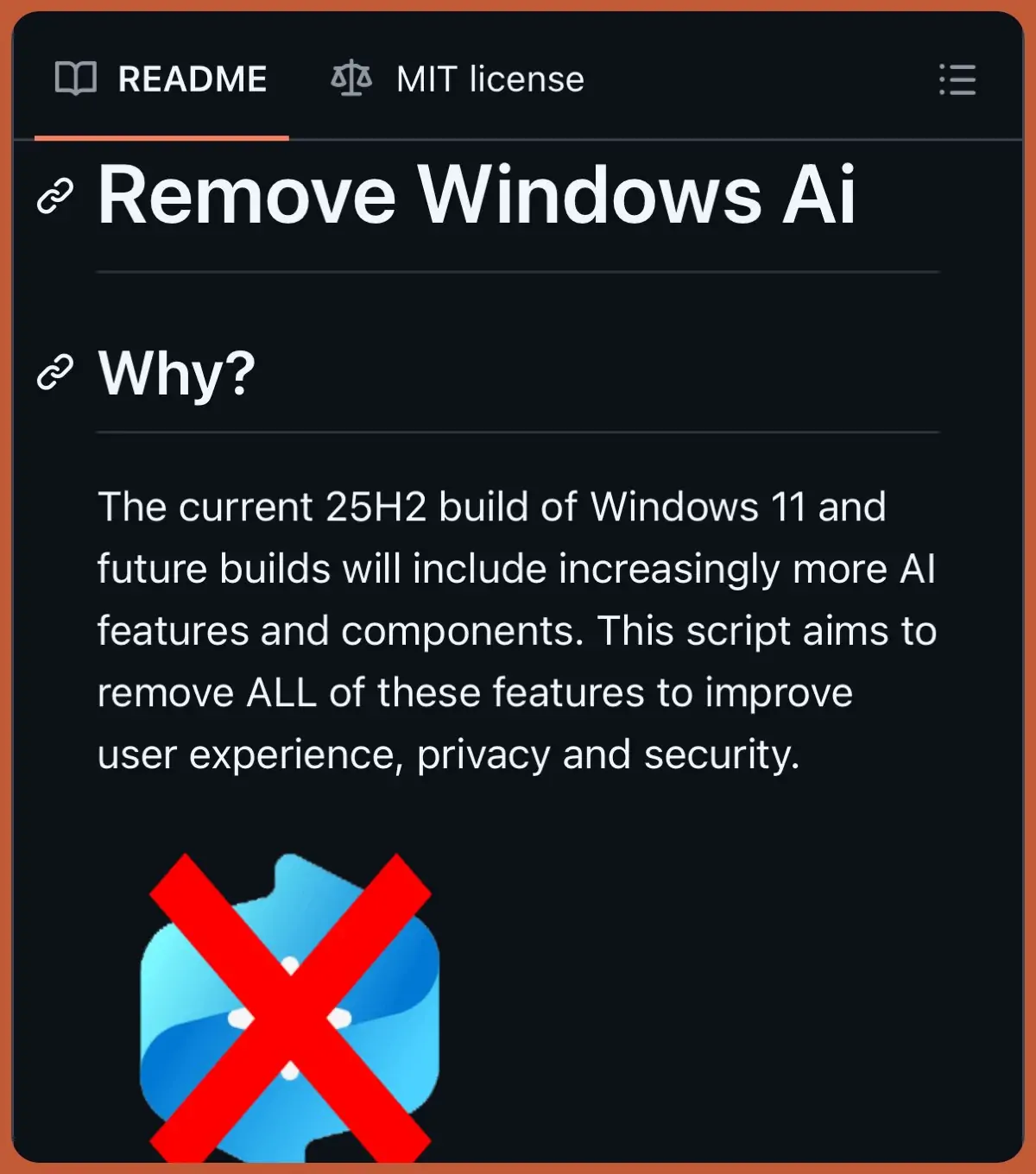
Created by developer Zoicware, this open-source PowerShell script targets AI at multiple levels. It flips registry keys to disable Copilot and Recall, removes AI-enhanced features from Edge, Paint, Voice Access, and Notepad, and uninstalls the underlying packages that make these services work. The script goes deeper than simple app removal by tackling the Component-Based Servicing store, which is where Windows Update stores components for future reinstallation.
One standout feature is the custom blocker package the script can install. This prevents Windows Update from automatically bringing back AI components you’ve removed, solving one of the biggest headaches with manual debloating. The script also hides the “AI Components” settings page and removes Recall’s scheduled tasks entirely.
With over 2,400 lines of code targeting the latest stable Windows 11 builds, RemoveWindowsAI is comprehensive. The developer commits to keeping it updated as Microsoft rolls out new AI integrations, though only for major OS releases, not experimental Insider builds.
How to use it, and some important warnings
Before diving in, understand that this tool modifies core system files. Always create a full backup or system restore point first. Some antivirus programs flag the script as malicious due to its deep system access, but these are false positives that you’ll need to work around.
The script offers both a GUI mode for less technical users and command-line options for automation. You can run it in backup mode, which lets you revert changes later, or go all-in with permanent removal. There’s even granular control if you only want to disable specific features.
To get started, open PowerShell as Administrator and run the command from the GitHub repository. The interactive mode walks you through each option with explanatory tooltips, making it accessible even if you’re not a PowerShell wizard. A system restart is required after the script completes.
Some AI features can’t be removed automatically and need manual intervention through Windows Settings. The repository includes a guide for these cases, covering elements like Gaming Copilot, OneDrive AI, and Windows Studio Effects.
Why this script matters
RemoveWindowsAI has sparked wider conversations about user autonomy and operating system design. Tom’s Hardware tested the script and confirmed it works as advertised, successfully removing visible AI elements and unprovisioning packages. The rapid spread across forums, GitHub mirrors, and social media demonstrates genuine demand for this level of control.
This isn’t just a debloat tool; it’s a statement. Users are pushing back against the assumption that everyone wants AI woven into every corner of their OS. Whether you’re worried about privacy, performance, or just prefer a minimal setup for development work, RemoveWindowsAI offers a solution that Microsoft hasn’t provided natively.
The script represents what open-source communities do best: filling gaps that corporate priorities leave behind. It’s transparent, auditable, and continuously improved based on community feedback. For those who value knowing exactly what’s running on their machines, that transparency is worth its weight in gold.
Ready to take control of your Windows 11 experience? Head over to the RemoveWindowsAI repository on GitHub and decide for yourself whether less AI means more productivity for your workflow.
Stay updated on the latest tech tools, scripts, and geek culture by following Geek Realm Hub on Facebook. Join our community for more deep dives into the software that puts power back in your hands.